

If Stripe is available in your country, use Stripe instead. Stripe confirms
payments automatically and publishes the job without you doing anything. PayPal
is the fallback, and it always needs a manual check.
Prerequisites
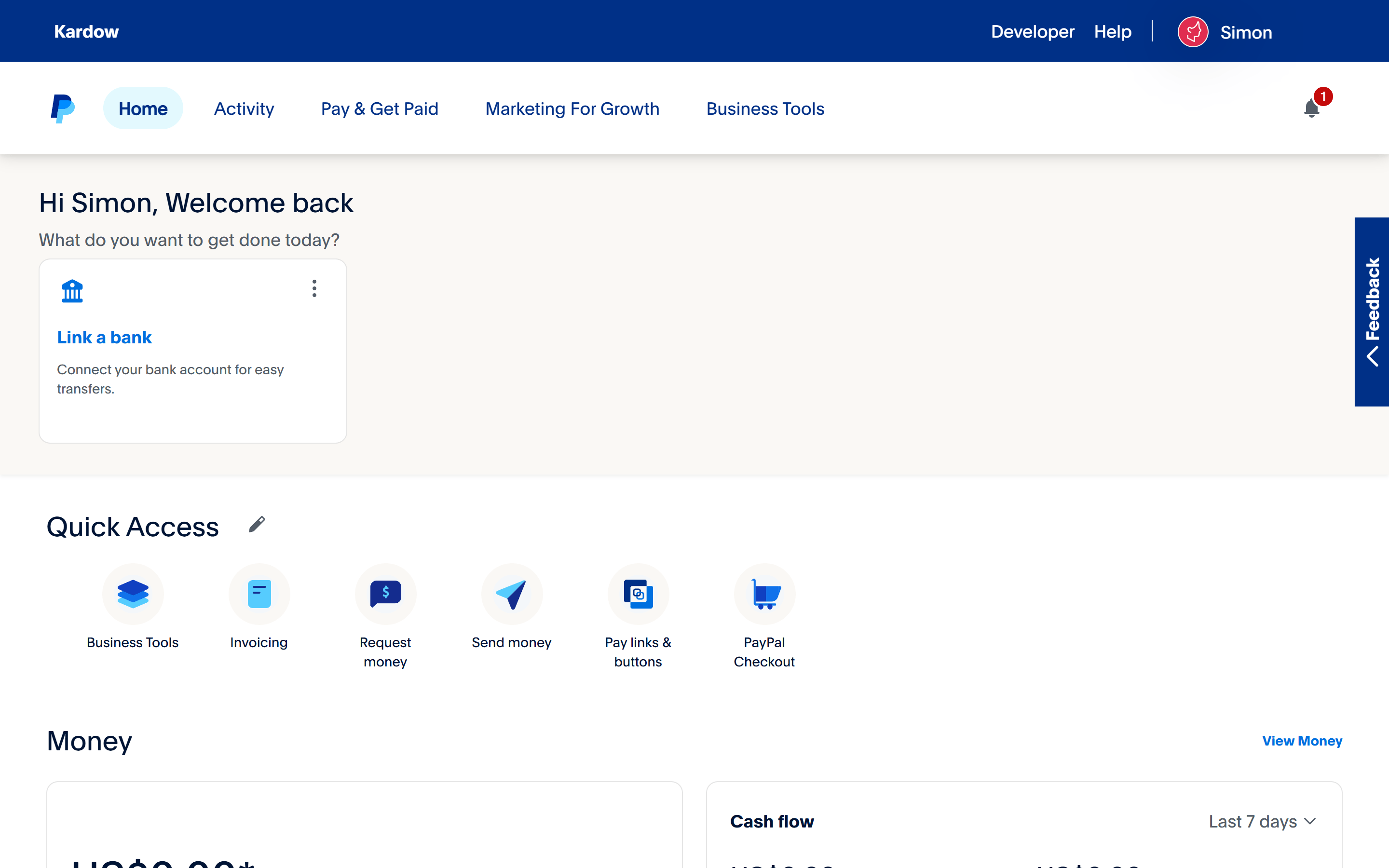
How PayPal payments work on Kardow
Before you set anything up, it helps to know exactly what happens, because PayPal behaves differently from Stripe:- An employer fills in the post-a-job form and picks one of your PayPal plans.
- Kardow creates the job with the status Pending and records a pending payment in your Payments tab.
- The employer is sent to
paypal.me/your-username/49with the price already filled in and pays you directly. - PayPal.me has no return link and no webhook, so nothing is sent back to Kardow. The payment stays “pending” in the dashboard.
- You check your PayPal account, confirm the money arrived, then set the job to Active in Kardow.
1. Create a PayPal account
Skip to step 2 if you already have one.1.1 Go to the PayPal website
Visit www.paypal.com and click Sign Up.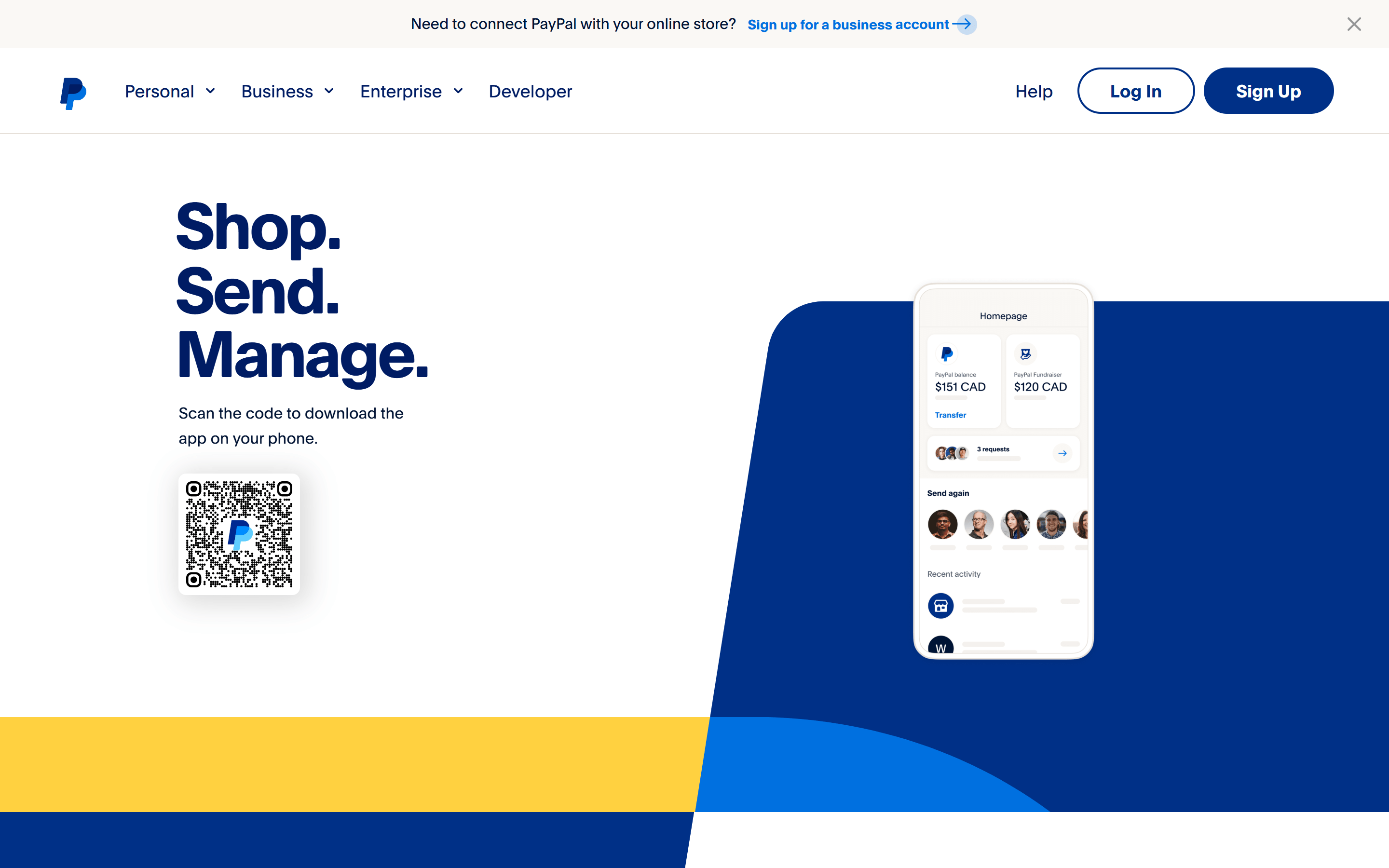
1.2 Choose your account type
PayPal asks you to pick between a Personal Account (everyday use) and a Business Account. Choose Business Account and click Next.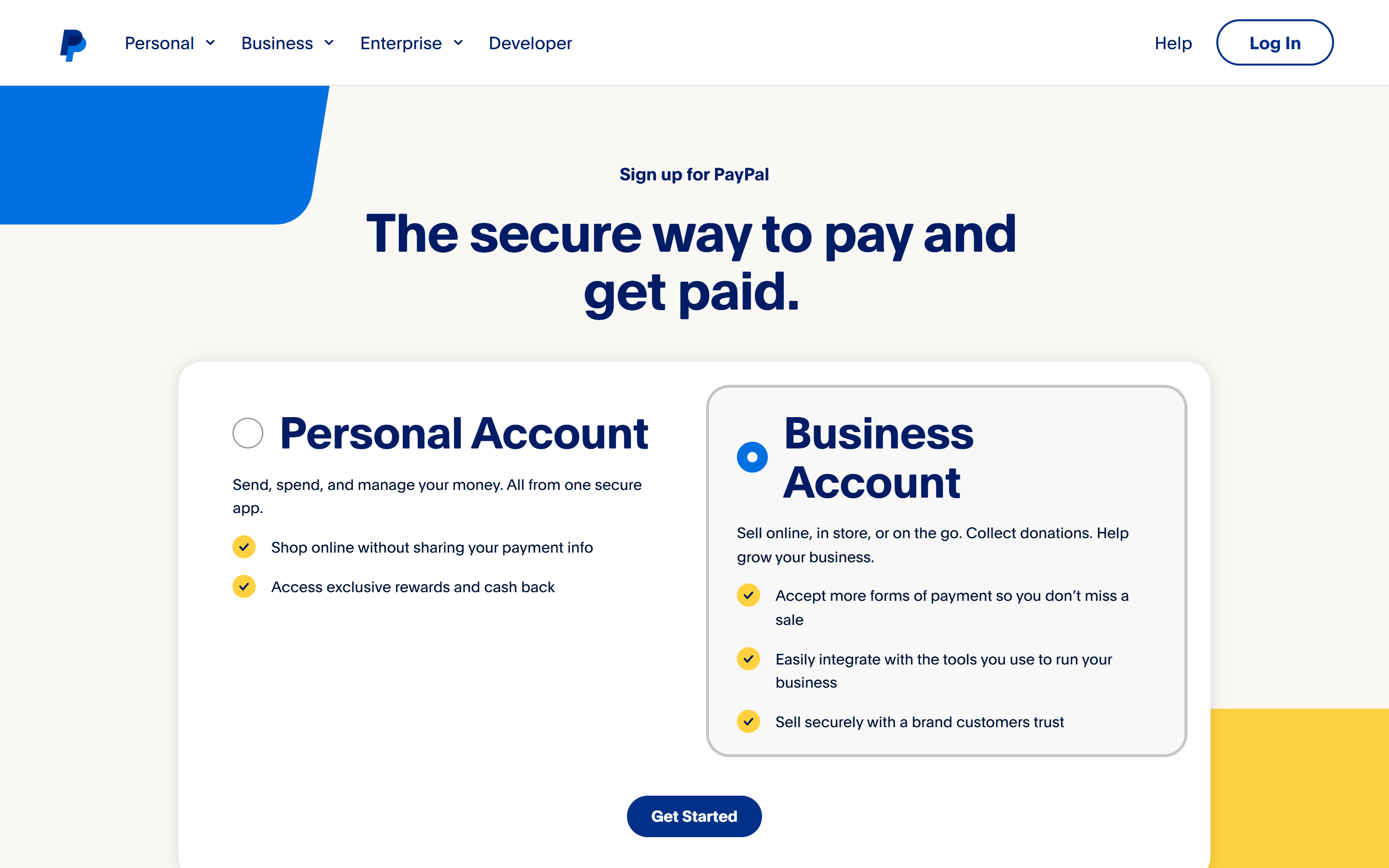
1.3 Fill in your business information
Add your business name (or your own name if you are a sole trader), business phone number and business address, then click Agree and Continue.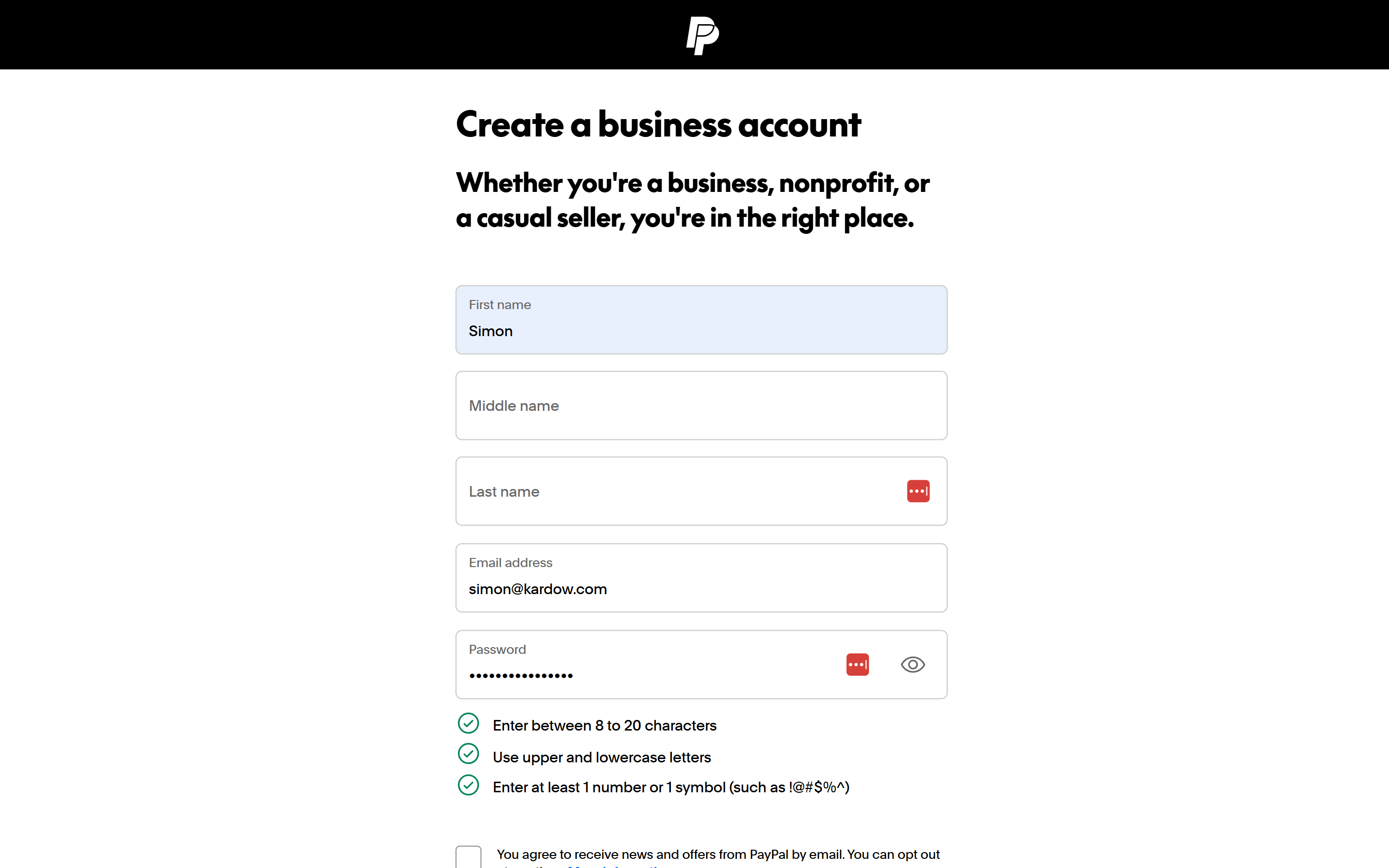
1.4 Confirm your email
PayPal emails you a confirmation code. Open the message and enter the code (or click Confirm Email).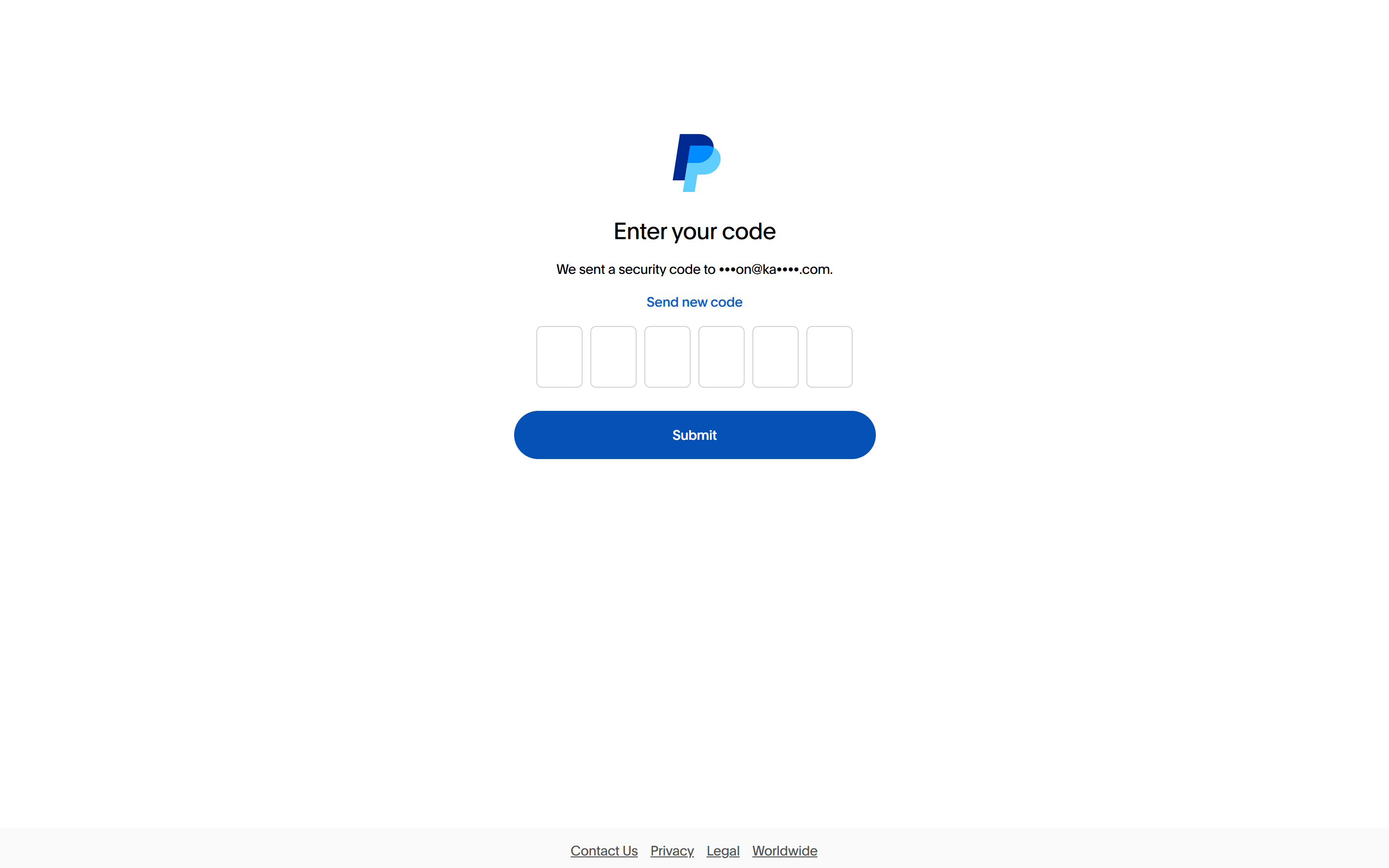
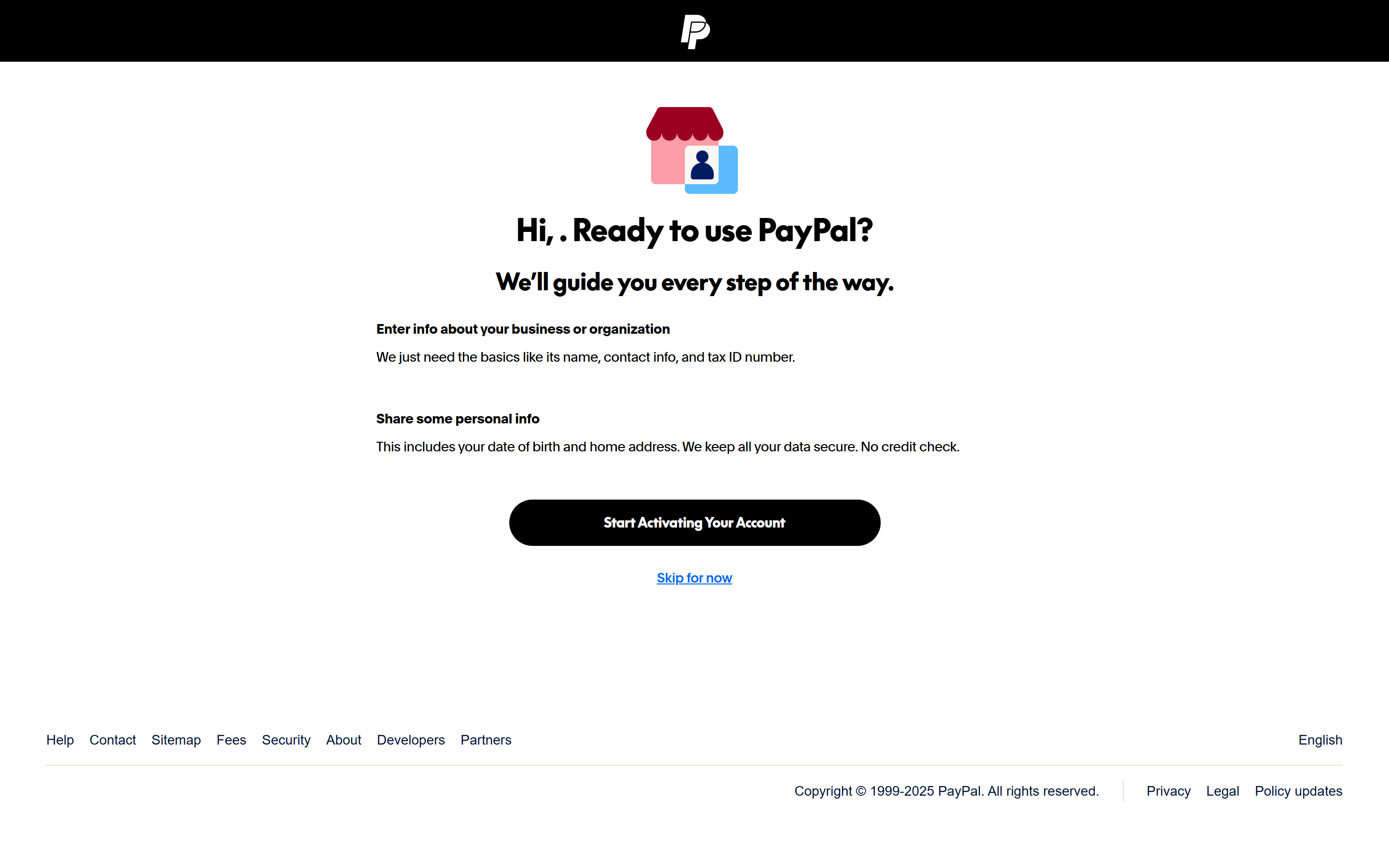
1.5 Activate your account
1.6 Describe your business
Pick the option that best matches what you do. A job board usually fits under services or advertising.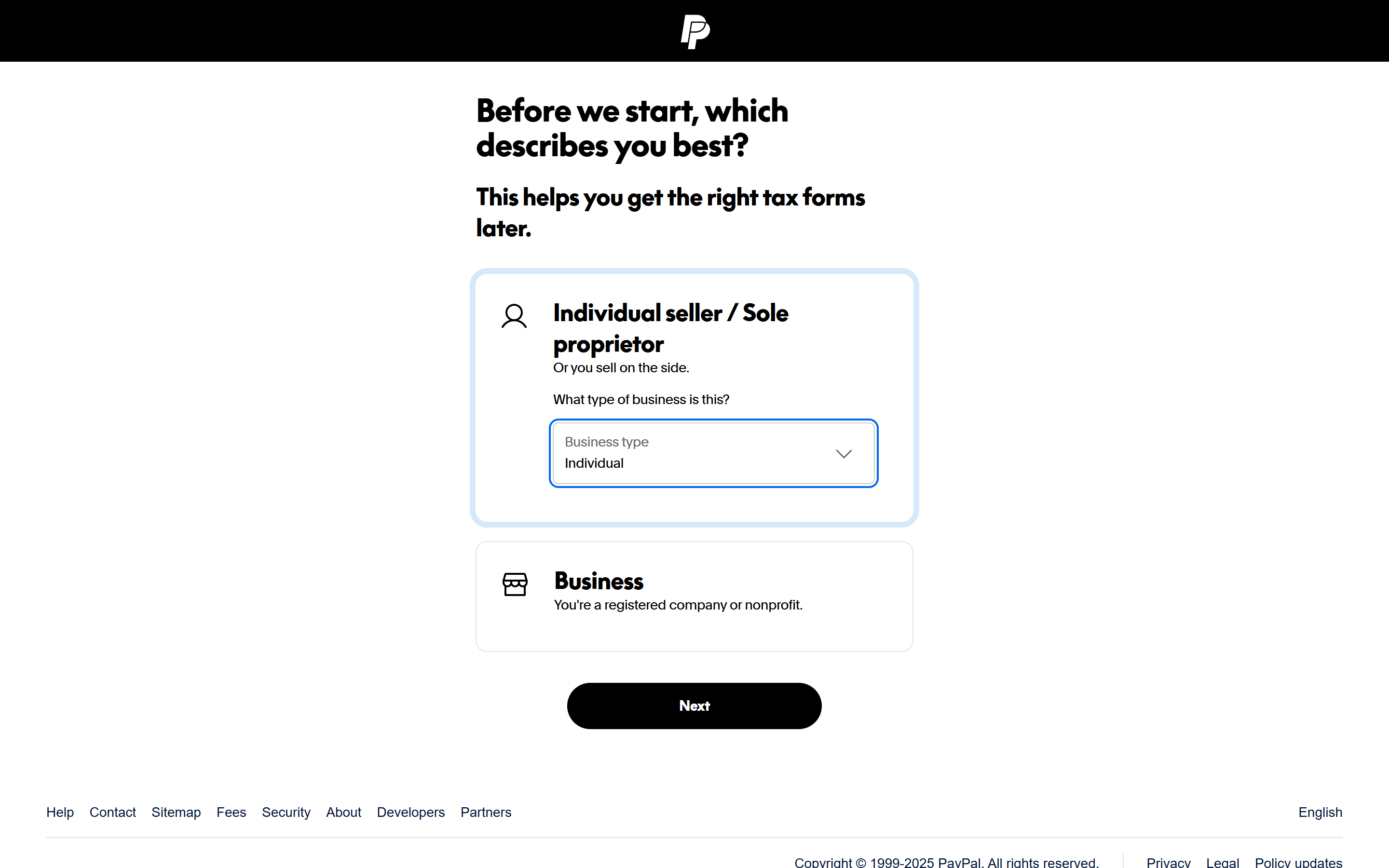
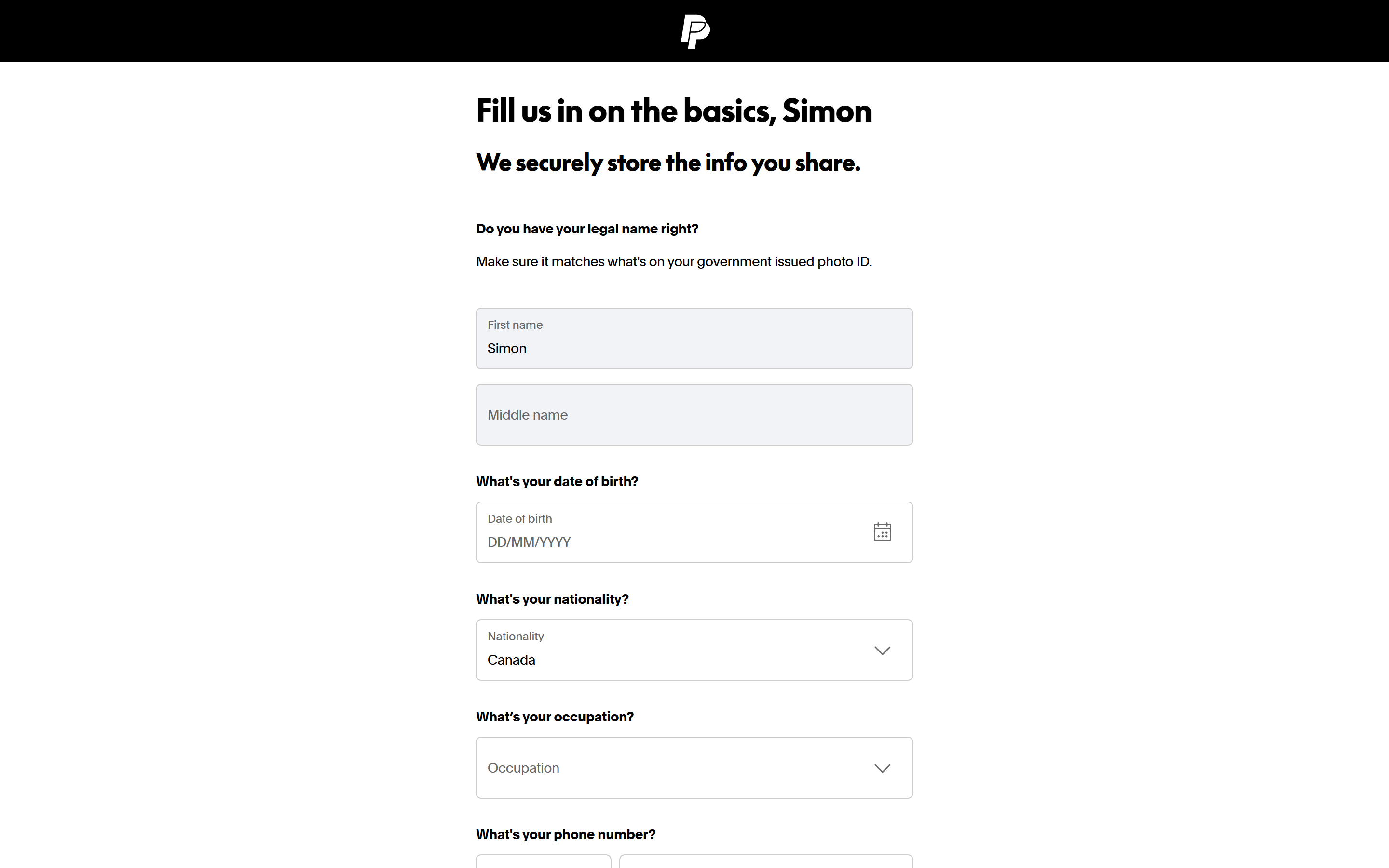
1.7 Fill in your personal details
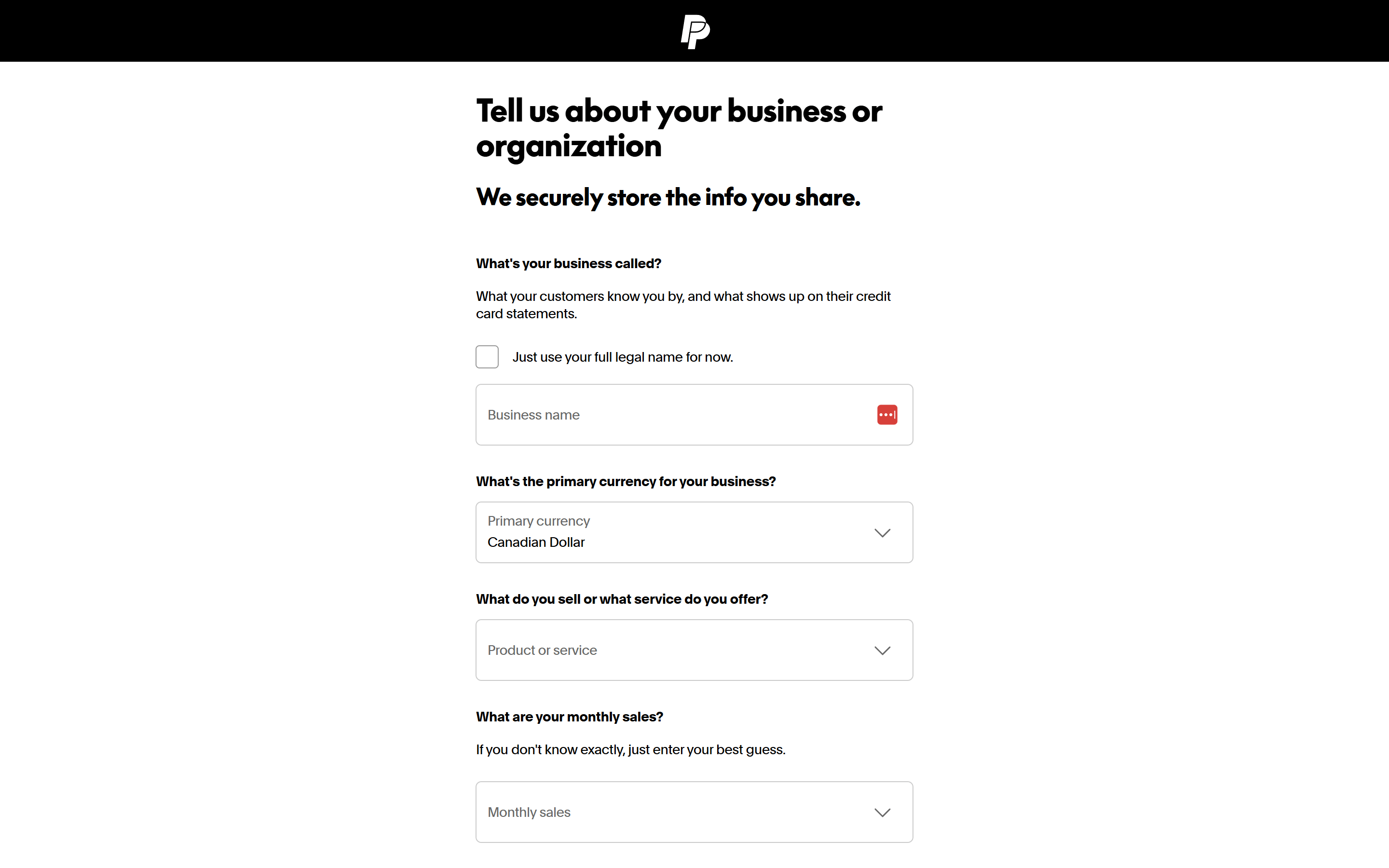
1.8 Fill in your business details
1.9 Your account is ready
2. Create your PayPal.me link
Kardow sends employers to a PayPal.me link, so you need one before payments can work. A PayPal account on its own is not enough.2.1 Open the PayPal.me settings
In your PayPal dashboard, go to Pay and get paid, then PayPal.me.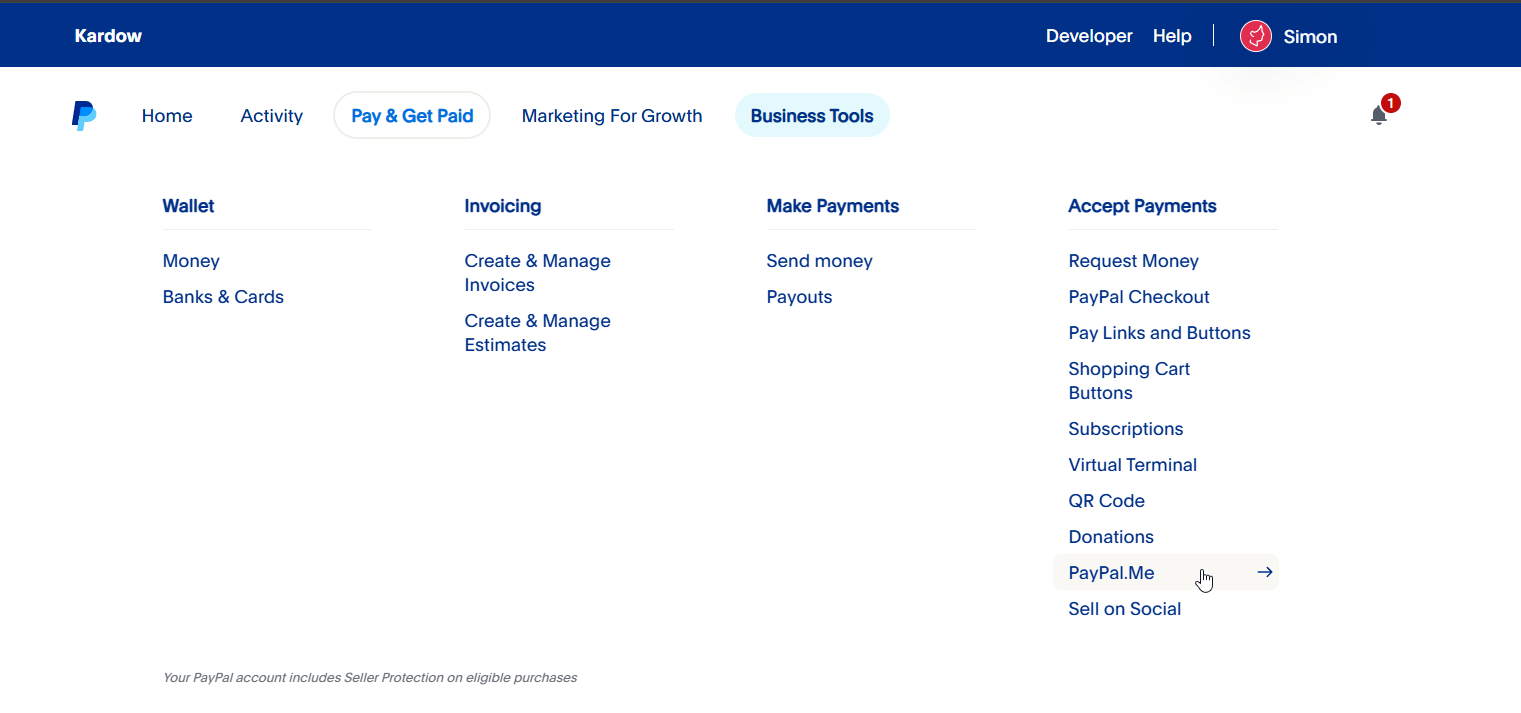
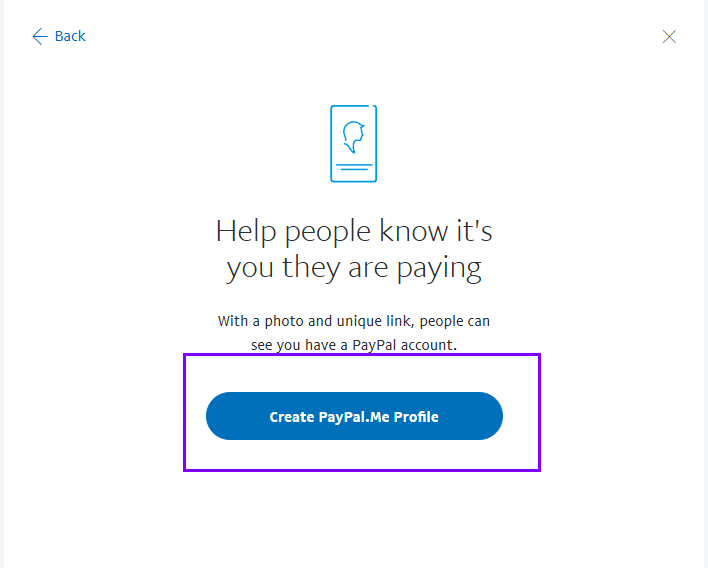
2.2 Create your profile
Click Create your PayPal.me link and choose a username. This becomes the last part of your link:paypal.me/your-username.
2.3 Add your photo and name
Fill in the profile details. This is what employers see when they land on your payment page.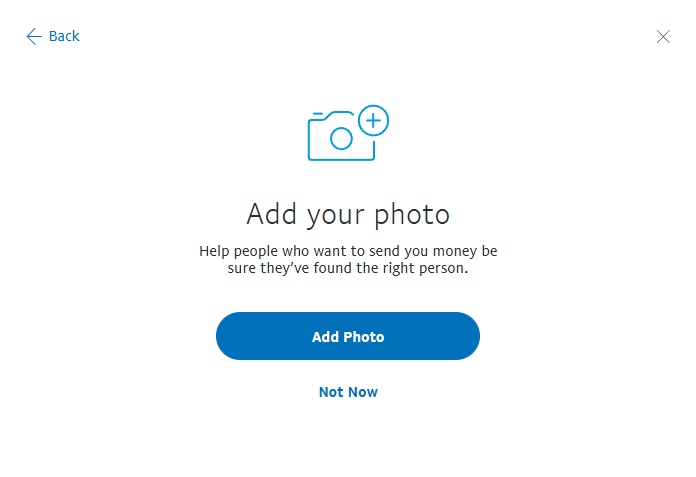 Write down your username. You need it in the next step.
3. Connect PayPal in Kardow
1
Open the Payments page
In your dashboard, go to Payments, then open the Payment Providers
tab.
2
Enable PayPal
Find the PayPal card and click Enable.
3
Enter your PayPal.me username
Type the username you created in step 2, for example
acmejobs.4
Leave Sandbox Mode off
Sandbox Mode is for testing only. See
Testing your setup below.
5
Save
Click Connect PayPal. The card now shows PayPal as connected, and a
“PayPal Payment Plans” section appears on the Pricing Plans tab.
Verify the link before you sell anything
Openhttps://www.paypal.me/your-username/1 in a browser. You should see your
PayPal.me profile with 1 pre-filled. If you get a “page not found”, the username
is wrong. Fix it in the dashboard before you publish any plans.
4. Create your PayPal pricing plans
Employers can only pay with PayPal if you offer a plan attached to it.1
Add a plan
Go to Payments → Pricing Plans and click Add Plan, then choose
PayPal.
2
Pick the plan type
PayPal supports two types:
- One-time - the employer pays for a single job post.
- Bundle - the employer pays once for a pack of job posts (for example, 10 posts).
3
Fill in the details
4
Create the plan
The plan is created active and visible, so it appears on your post-a-job page
straight away. Use Hide or Deactivate on the plan card if you are not
ready to sell it yet.
A note on currencies
Kardow builds the link aspaypal.me/username/AMOUNT for USD and
paypal.me/username/AMOUNTCURRENCY for everything else, for example
paypal.me/acmejobs/49EUR. Make sure your PayPal account accepts the currency
you price the plan in, otherwise PayPal will show the payer an error.
5. Confirm payments and publish jobs
This is the part you have to do by hand for every PayPal order.1
Spot the new order
A new PayPal job shows up under Payments with the method “paypal” and the
job status Pending. The job is not visible on your board yet.
2
Check PayPal
Open your PayPal activity and confirm you received the payment, and that the
amount matches the plan price.
3
Publish the job
In the Payments tab, use the status dropdown on that row and set the job
to Active. You can also do it from Jobs in the dashboard.If no payment ever arrives, leave the job as Pending or set it to Draft. It
never becomes public on its own.
Bundles are credited immediately
When an employer buys a bundle, Kardow activates their credits at the moment they submit the form, before you have seen the money. That keeps the buying experience smooth, but it means an employer could post their remaining bundle jobs without paying. Every job still lands as Pending and waits for your approval, so nothing goes live unchecked. Just remember to confirm the bundle payment arrived before you start approving that employer’s jobs.Testing your setup
Sandbox Mode (on the PayPal card in Payment Providers) skips PayPal entirely and marks the payment as completed so you can walk through the flow without paying anything. For a real end-to-end test, keep Sandbox Mode off, create a $1 plan, hide it from your public page, and post a test job through it yourself.Limitations
PayPal plans cover job posting only. Paywall subscriptions and Talent Directory
access need Stripe, Polar or invoicing.
Troubleshooting
The PayPal link opens a 'page not found'
The PayPal link opens a 'page not found'
The username is wrong. Go to Payments → Payment Providers → PayPal →
Configure and enter the username exactly as it appears in your PayPal.me
profile, without the
paypal.me/ prefix and without your email address.No PayPal option shows on my post-a-job page
No PayPal option shows on my post-a-job page
Check three things: PayPal is connected in Payment Providers, you have at
least one PayPal plan under Pricing Plans, and that plan is both
Active and Visible on its plan card.
The payment still says 'pending' after the employer paid
The payment still says 'pending' after the employer paid
This is expected. PayPal.me cannot tell Kardow that a payment happened, so
the record stays pending. Confirm the payment in PayPal and set the job to
Active yourself.
An employer paid the wrong amount
An employer paid the wrong amount
PayPal.me allows the payer to edit the pre-filled amount. Ask them to send
the difference, refund them from PayPal, or approve the job anyway. Kardow
does not enforce the amount.
I want subscriptions or automatic publishing
I want subscriptions or automatic publishing
Use Stripe or Polar. PayPal on Kardow is a one-time payment fallback and
cannot do recurring billing or automatic confirmation.
Related guides
Posting jobs
What employers see on the post-a-job form
Invoice payments
Bill employers instead of taking card payments