

This guide covers adding your own custom email domain. Emails will be sent from your own provider. You can use any provider that allows SMTP—the providers mentioned in this guide are just popular examples.
Why Set Up Your Own Email Provider?
Using your own email provider through SMTP offers several advantages:- Professional Branding: Emails come from your organization’s domain
- Reliable Delivery: Better deliverability rates than generic email services
- Full Control: Manage all aspects of your email communication
- Tracking: Monitor email delivery and engagement
- Scalability: Handle any volume of job applications
What is SMTP?
SMTP (Simple Mail Transfer Protocol) is the industry standard for sending emails. It’s:- Universal: Works with all major email providers
- Reliable: Proven technology used by millions of organizations
- Secure: Supports encryption for secure email transmission
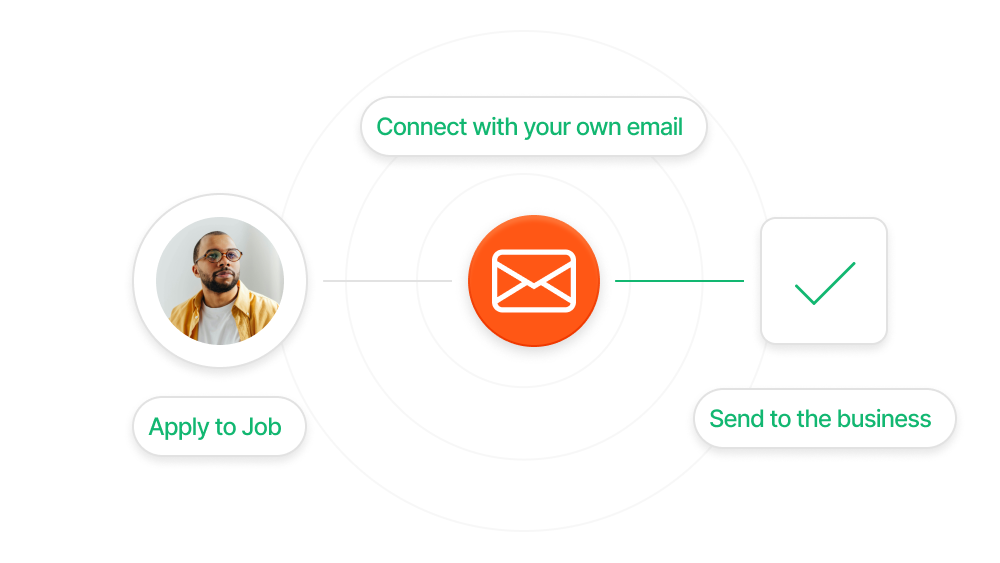
Supported Email Providers
We support several popular email providers through SMTP:Resend.com
Modern email API platform with excellent deliverability and simple setup.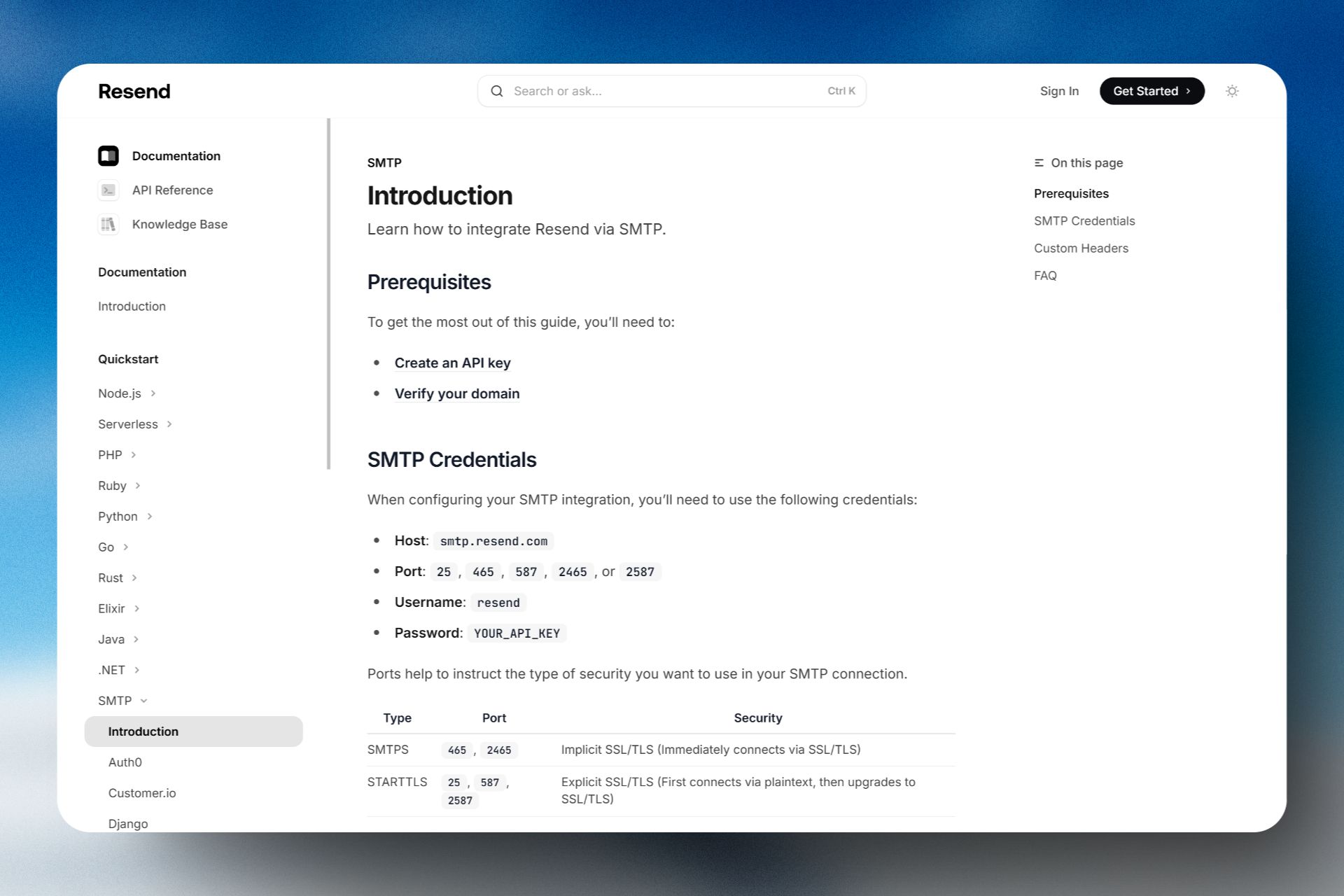
Mailchimp
Comprehensive email platform, great for marketing teams with robust analytics.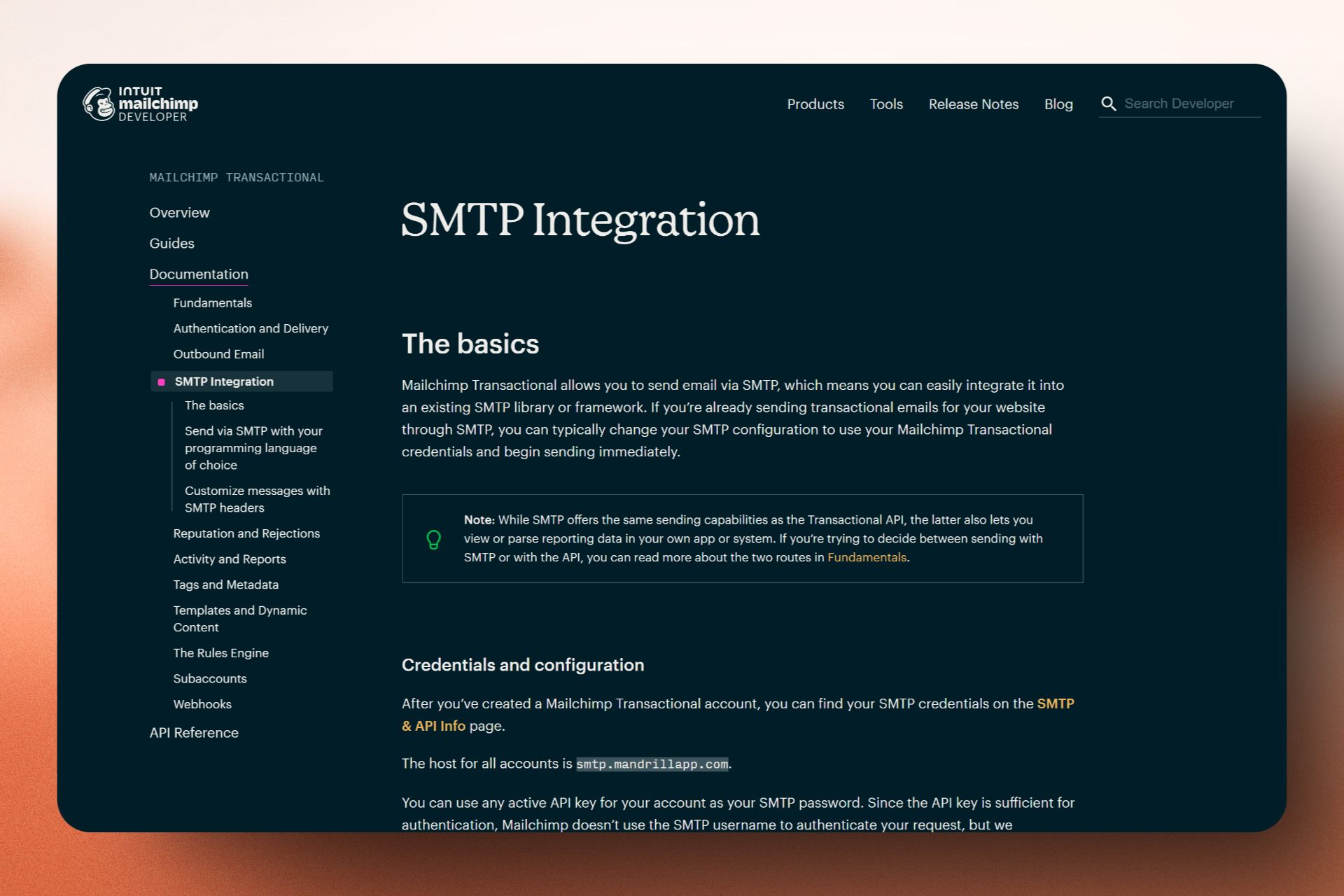
Sendgrid
Enterprise-grade email service with high-volume capability and advanced analytics.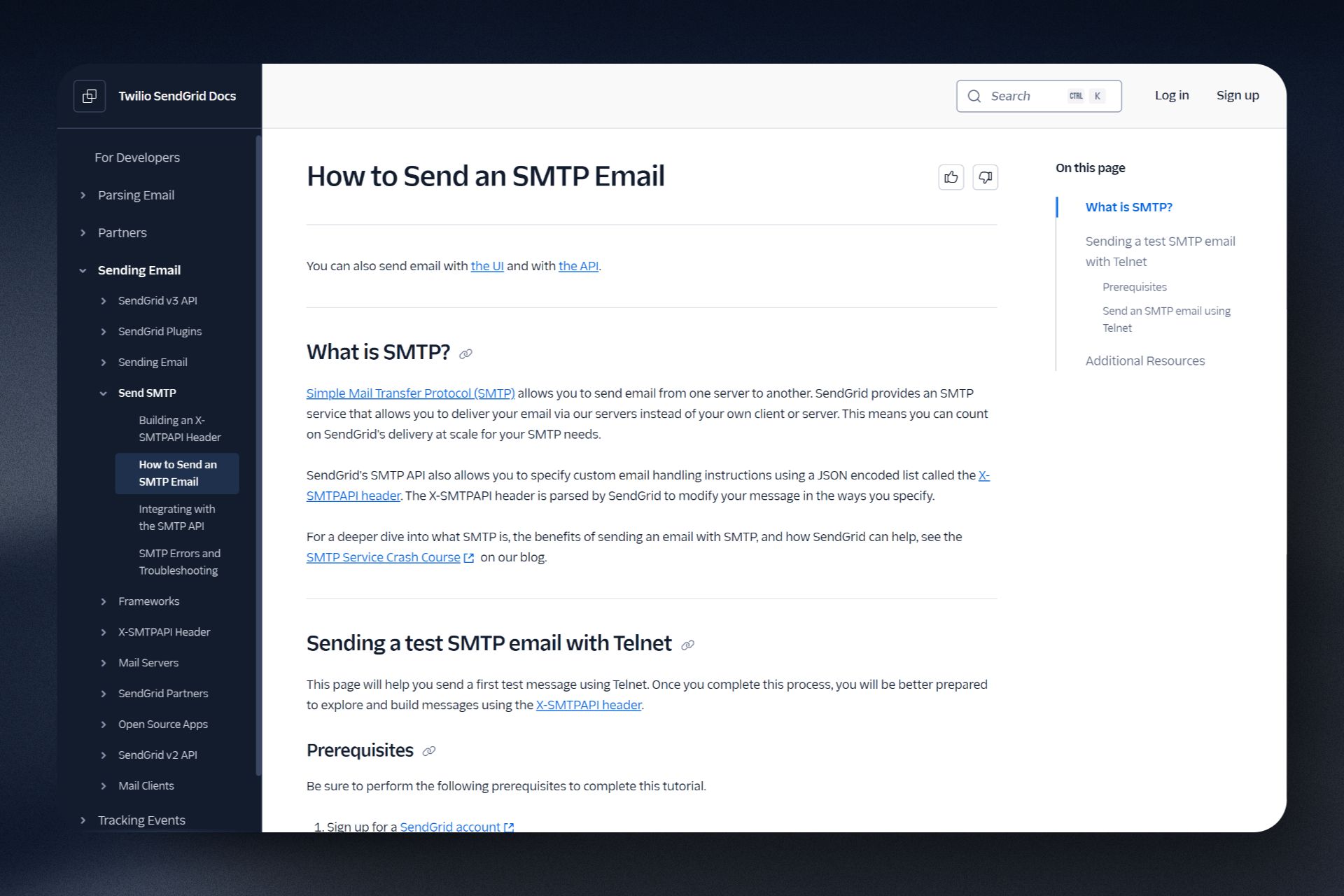
Loops.so is not currently supported as they don’t offer SMTP services. The providers mentioned above are just examples - any email provider that supports SMTP can work.
Setting Up Your Email System
1
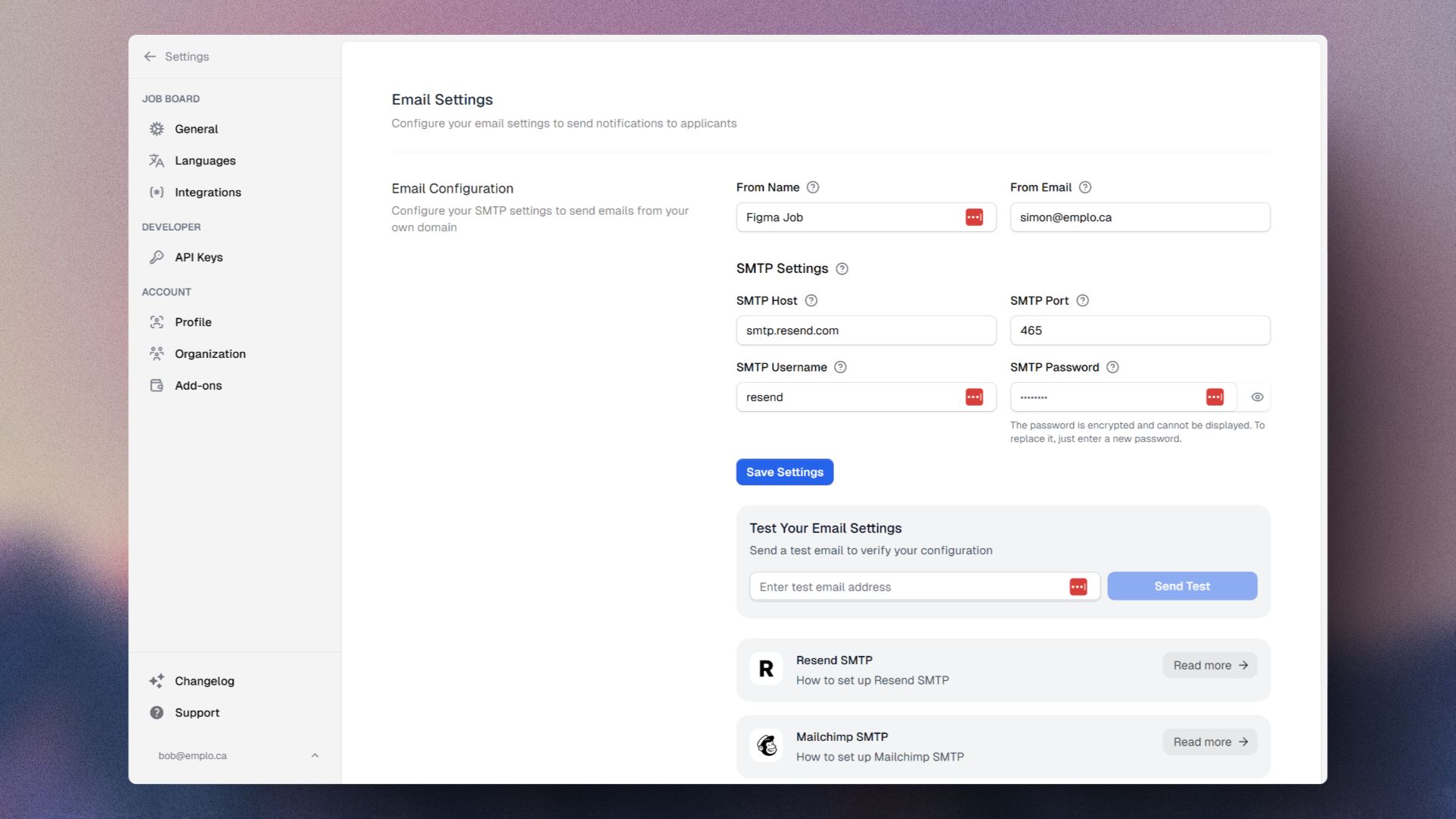
Access Email Settings
- Navigate to your organization’s dashboard
- Go to Settings → Email Configuration
- Look for the SMTP configuration section
2
Configure SMTP Settings
Enter your email provider’s SMTP details: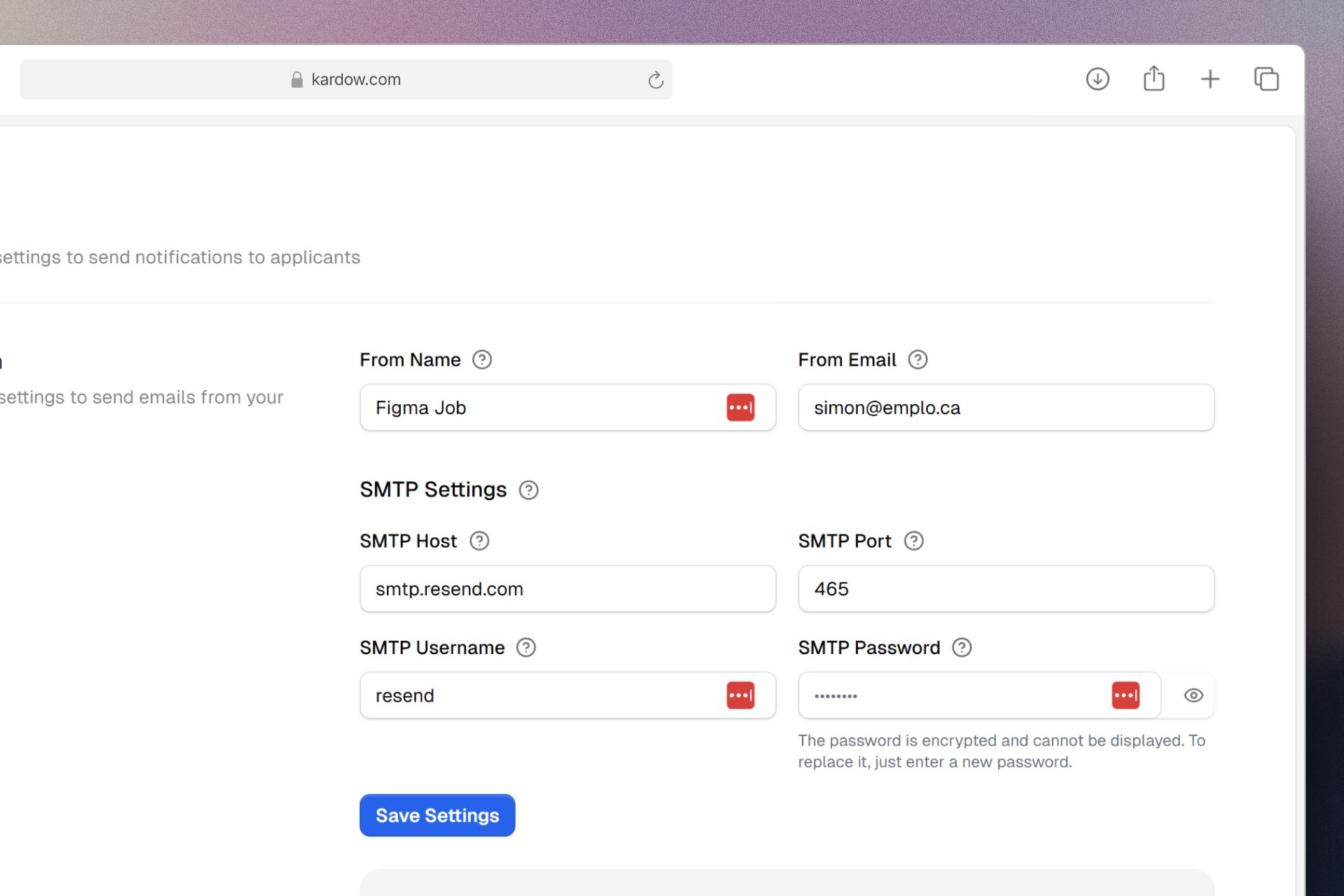
- SMTP Host: Your provider’s SMTP server address
- SMTP Port: Usually 587 or 465 for secure connections
- SMTP Username: Your email account username
- SMTP Password: Your email account password
- From Email: The email address that will send notifications
- From Name: The name that appears in recipients’ inboxes
3
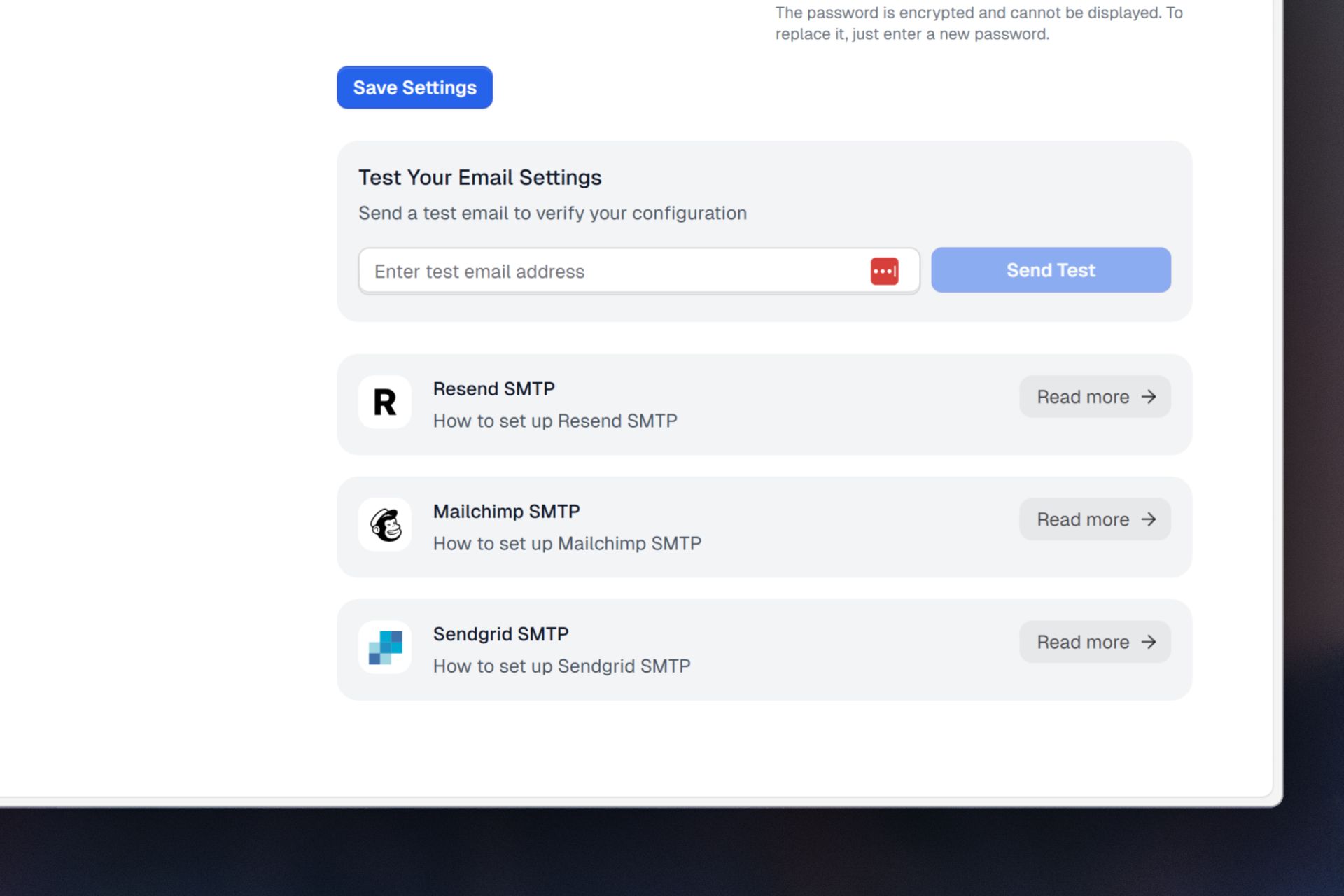
Test Your Configuration
- Find the “Test Email Configuration” section
- Enter a test email address
- Click “Send Test Email”
- Check your inbox for the test message
How It Works
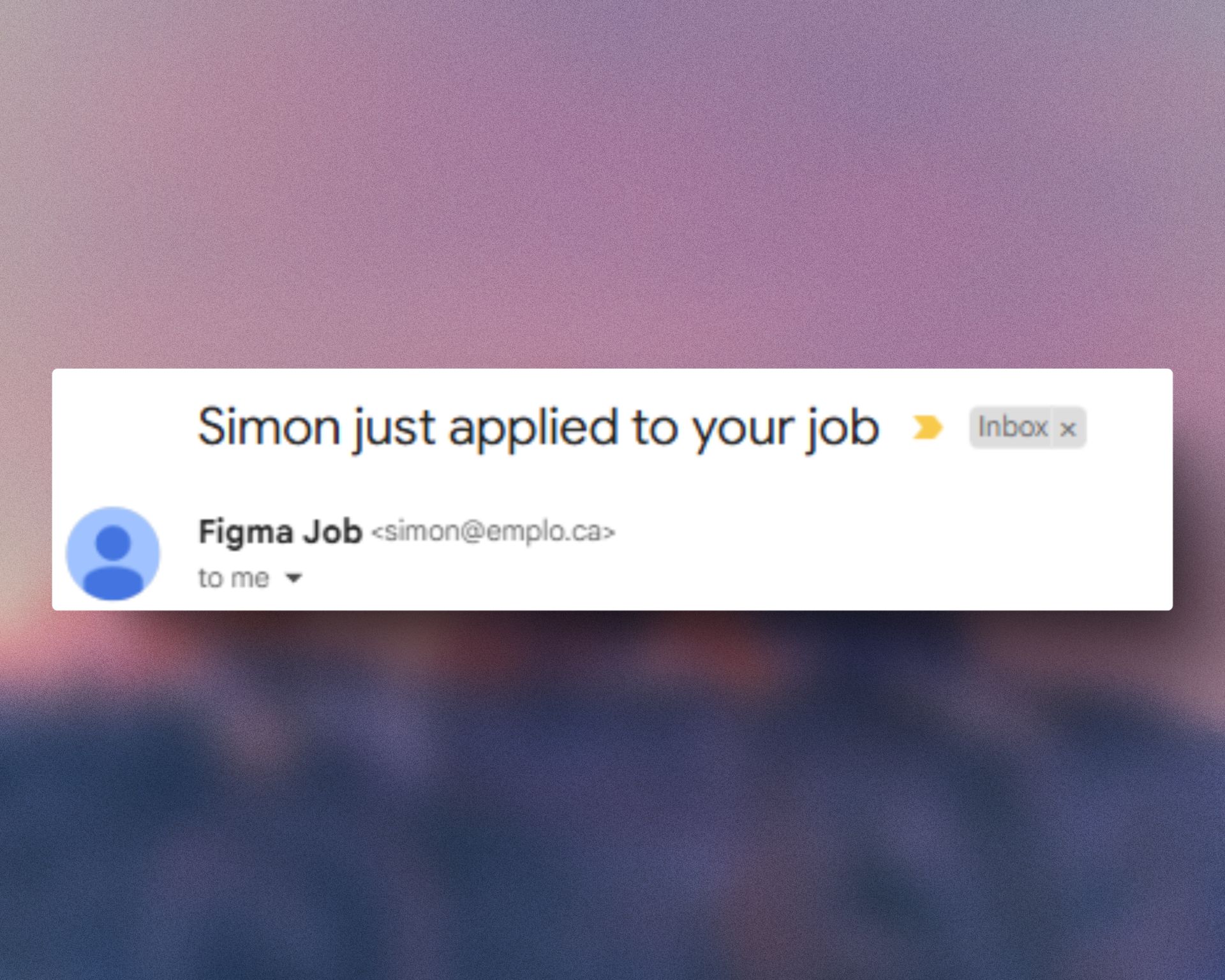
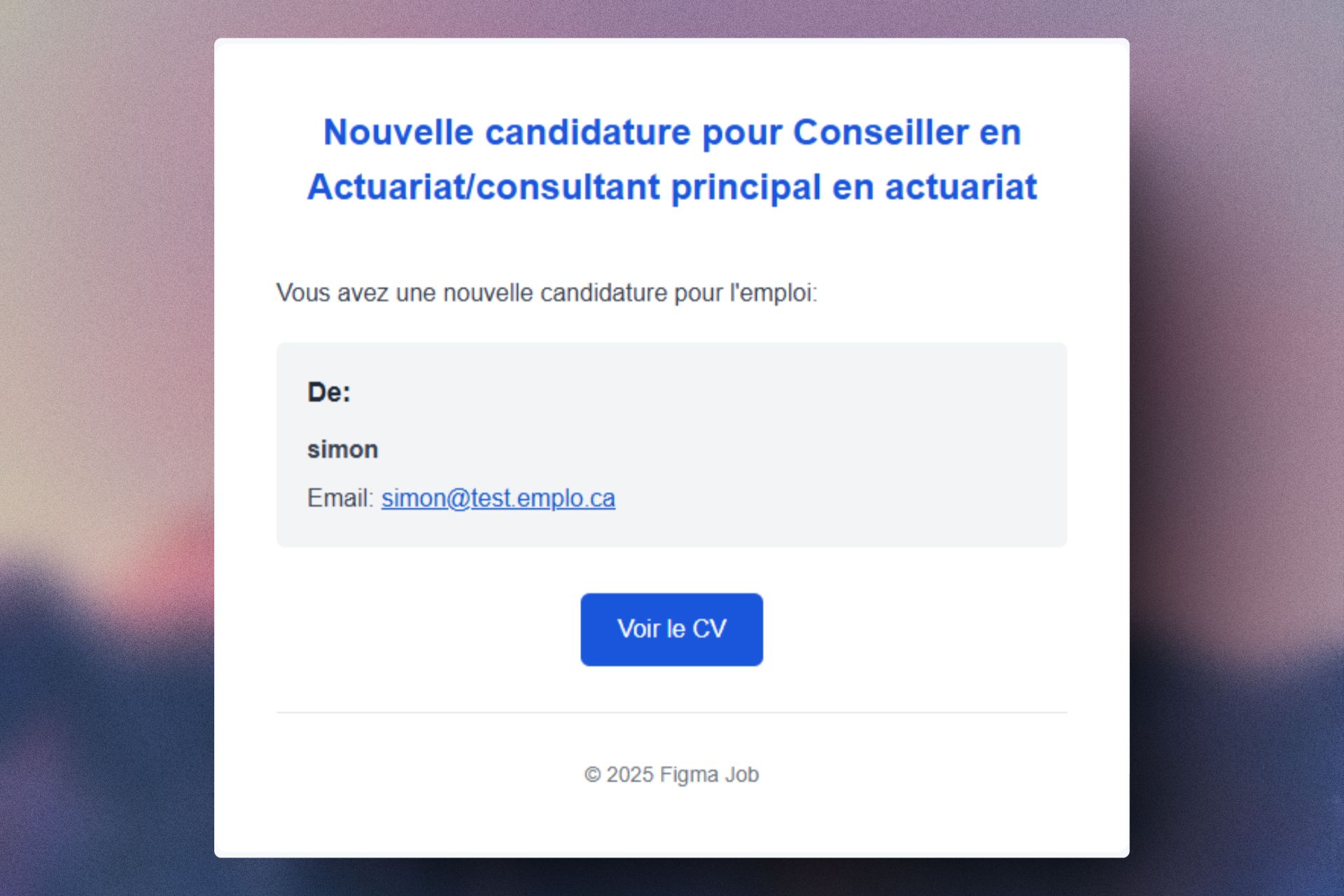
Automatic Job Application Notifications
When someone applies to a job posting:- The application is received and processed
- An email notification is automatically generated
- The job poster receives an email containing:
- Job title and reference
- Applicant’s name
- Application timestamp
- Link to view full application
- Applicant’s resume (if attached)
Email Template
Our standard email template includes:- Your organization’s branding
- Translated automatically to your job board’s language
- Clear subject line
- Professional formatting
- Important application details
- Direct links to take action
Best Practices
Setup Recommendations
Maintenance
Troubleshooting
Emails not sending
Emails not sending
- Verify SMTP credentials
- Check server ports aren’t blocked
- Confirm email limits haven’t been reached
Emails in spam
Emails in spam
- Use your organization’s domain
- Set up proper SPF/DKIM records
- Maintain good sending practices
Configuration errors
Configuration errors
- Double-check all SMTP settings
- Ensure password is current
- Verify SSL/TLS settings
Need help? Contact our support team for assistance with your email configuration.
Security
Your email configuration is protected by:- Encrypted credential storage
- Role-based access control
- Secure SMTP connections